 PixDrive
PixDrive SD Card Expansion for WLED
Play PixDrive Studio shows from an SD card on your WLED controller – no computer required.
Updated
Requirements
- WLED controller with PixDrive firmware
- SD card board (e.g. Zedfy ZW-SD + C012)
- microSD card (formatted as FAT32)
.wledanimation files (created with PixDrive Studio)
Source code of the WLED usermod
https://github.com/pixdrive/WLED/releases/tag/v0.15.5-pixdrive
Connecting the SD Card Board
Zedfy ZW-SD + C012
The Zedfy ZW-SD board is connected to the ESP32 via SPI. When used with the C012 controller, the GPIOs are already preconfigured:
| Signal | GPIO | Description |
|---|---|---|
| CS | 33 | Chip Select |
| SCK | 27 | Clock |
| MISO | 26 | Data Out (SD → ESP) |
| MOSI | 25 | Data In (ESP → SD) |
Other SD card boards
The GPIO assignment can be adjusted in the WLED settings:
- Open the WLED web interface
- Settings → Usermods
- Under SD Card, adjust the GPIO pins to match your own wiring
- Save and wait for the restart
Using the SD Card Manager
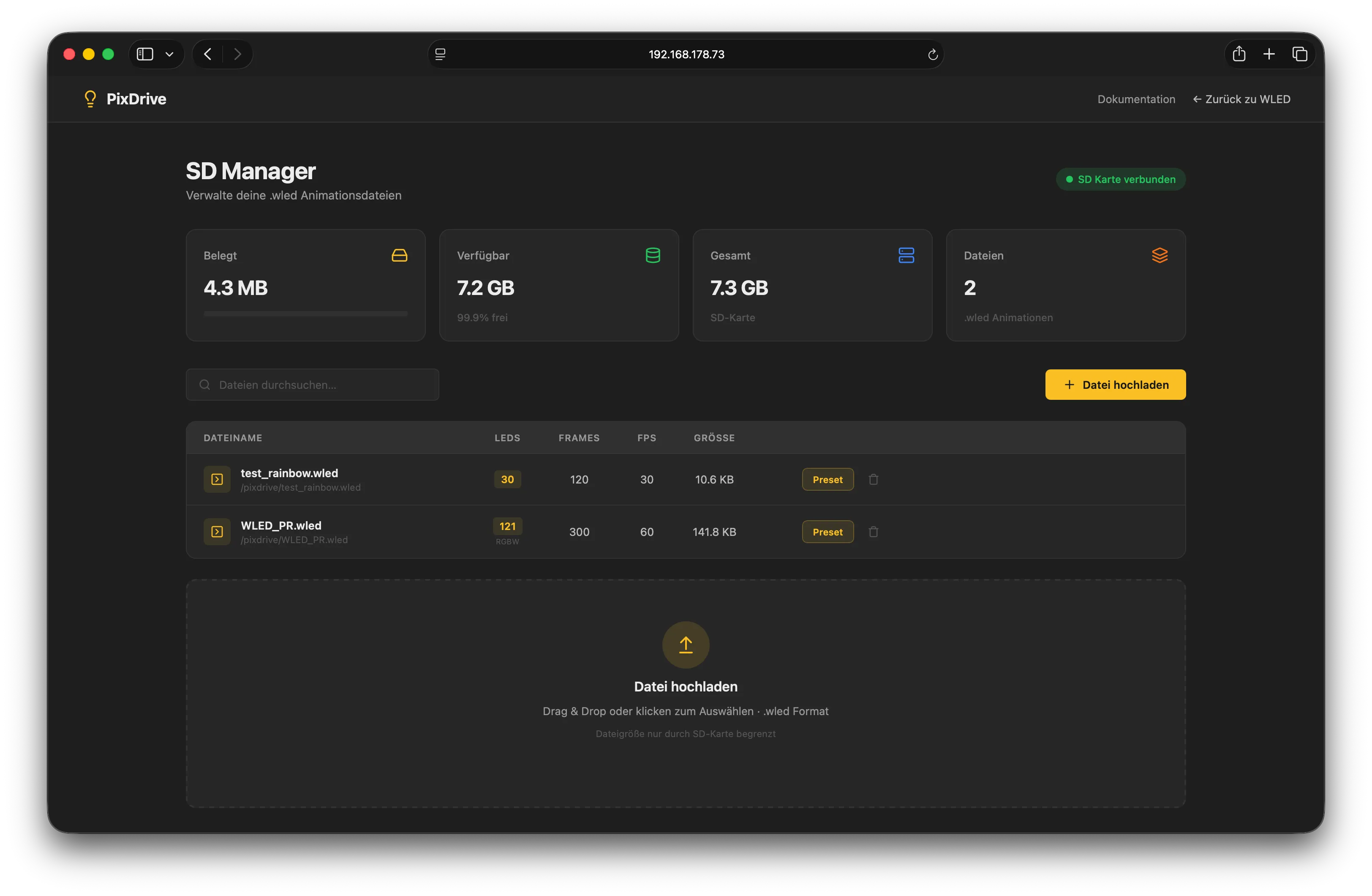
The PixDrive SD Card Manager is accessible via the browser:
http://<WLED-IP>/pixdriveUploading files
- Open
/pixdrivein the browser - Drag and drop a
.wledfile into the upload zone, or select a file via the button - The file is automatically checked for integrity (CRC32)
- After a successful upload, the file appears in the file list
Managing files
The file list shows all .wled files on the SD card with the following information:
- File name
- File size
- Number of LEDs and frames
- FPS (frames per second)
- RGB/RGBW mode
Files can be removed individually via the Delete button.
Using the PixDrive Effect
Playback of .wled animations is done via the WLED effect PixDrive.
Setup
- Open the WLED web interface
- Select or create a segment
- In the effect list, select the effect PixDrive
- In the segment name, enter the file path of the desired animation:
/pixdrive/my_animation.wled - The animation starts automatically
Multiple animations at once
Each WLED segment can play its own animation. This lets you drive multiple LED strips independently with different animations:
- Create a separate segment for each LED strip
- Assign the PixDrive effect to each segment
- Enter a different file path in each segment name
Controlling playback
The animation runs in an endless loop at the FPS rate stored in the .wled file. Via the WLED interface you can:
- Speed: adjust playback speed
- Brightness: control brightness
- Toggle segment on/off → starts/stops playback