 PixDrive
All articles
Getting started
Your first steps with PixDrive Studio: add a device, add a fixture, start your first effect.
Add a device by hand
Add an Art-Net or sACN controller by its IP address without discovery: protocol, port and sACN priority.
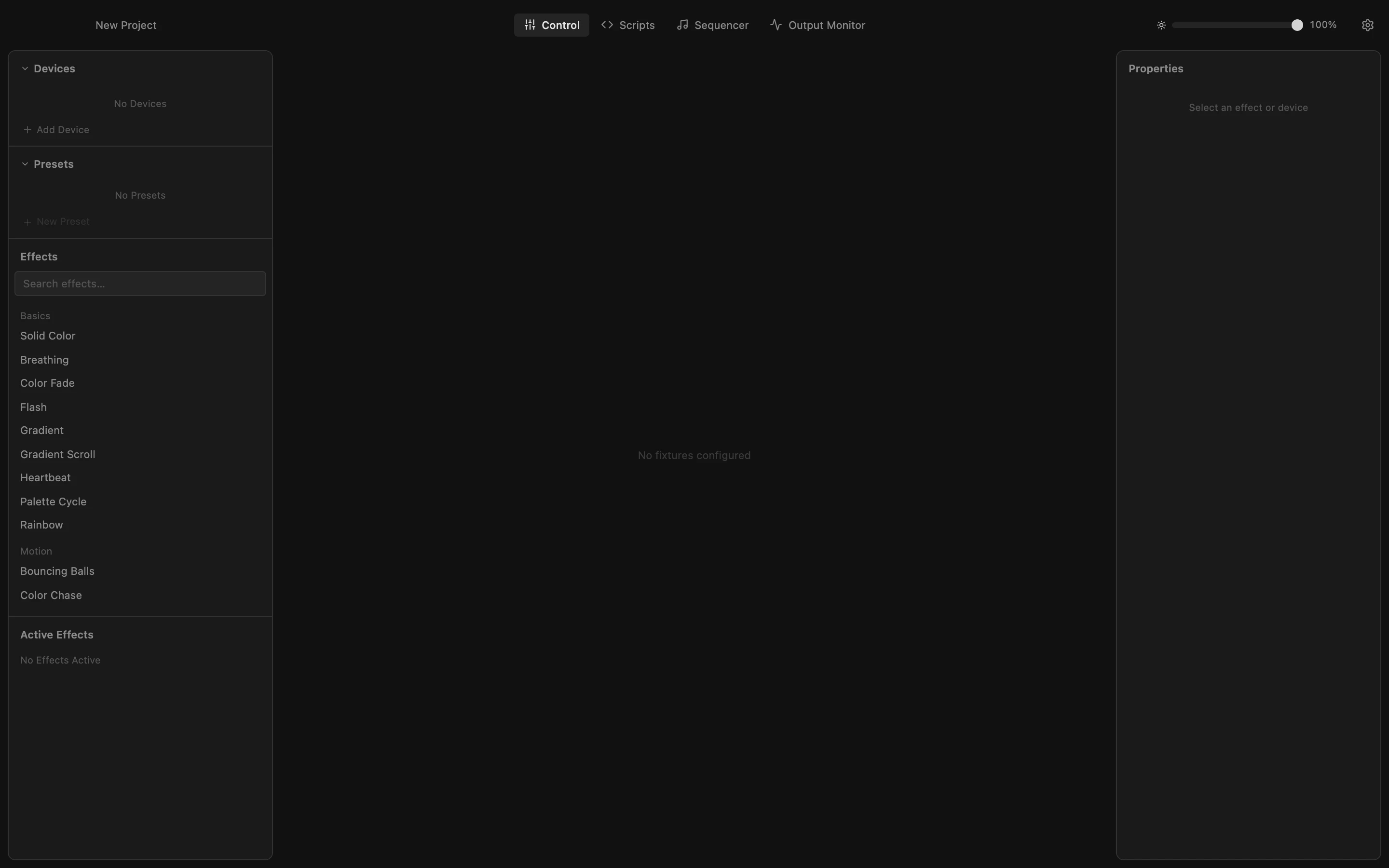
Step 1 of 6
Open the device form
Some controllers do not answer Device Discovery. Add them by hand: click Add Device at the bottom of the Devices list.
Add a fixture
Add a fixture: LED type, LED count, universe and DMX address, color order and reverse.
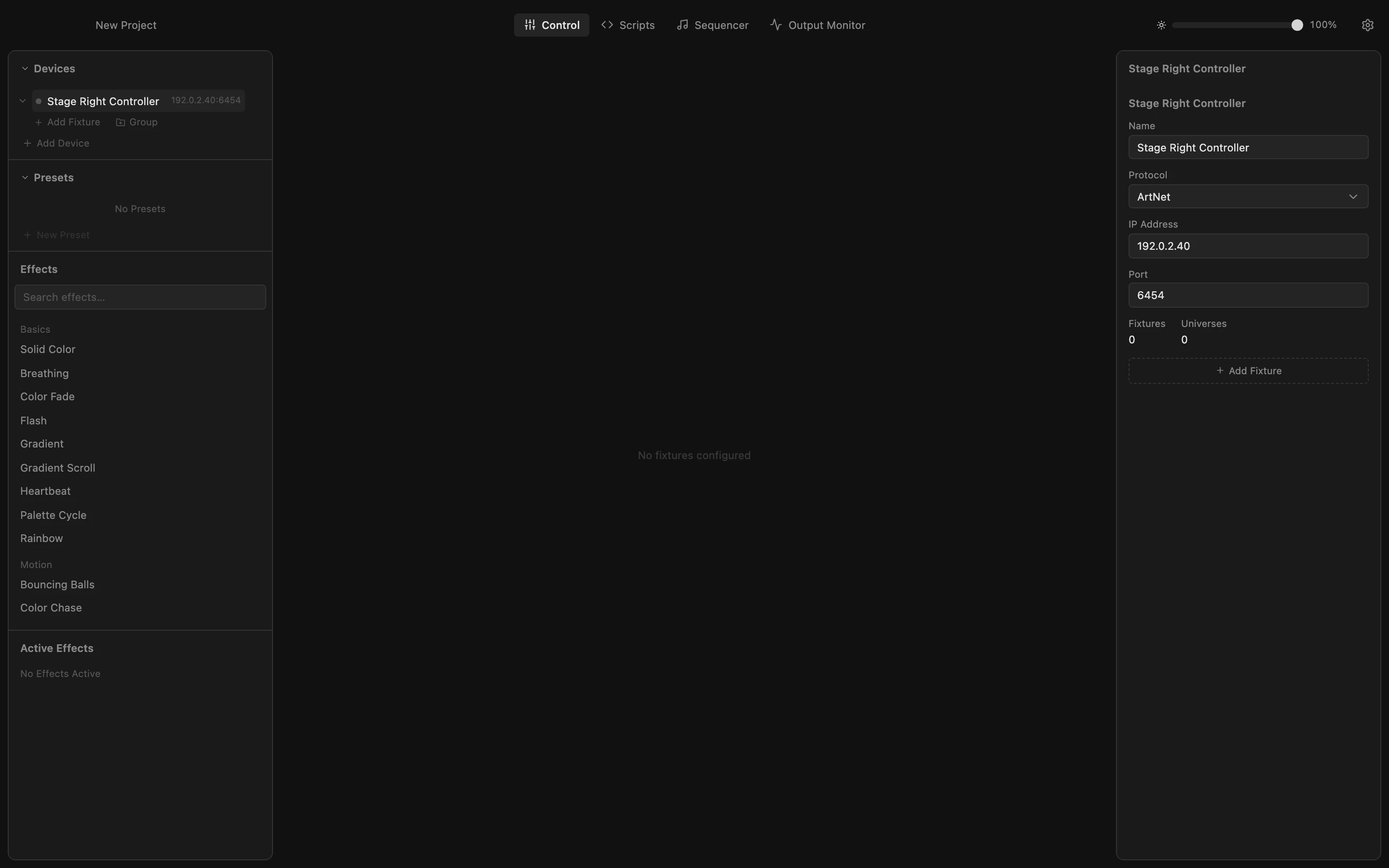
Step 1 of 7
Open the fixture form
A fixture is one LED strip, matrix or shape on a controller output. Click Add Fixture under the device the strip is connected to.
Start an effect and adjust it
Start an effect from the list, change its speed and color in Properties, watch the preview and stop it again.
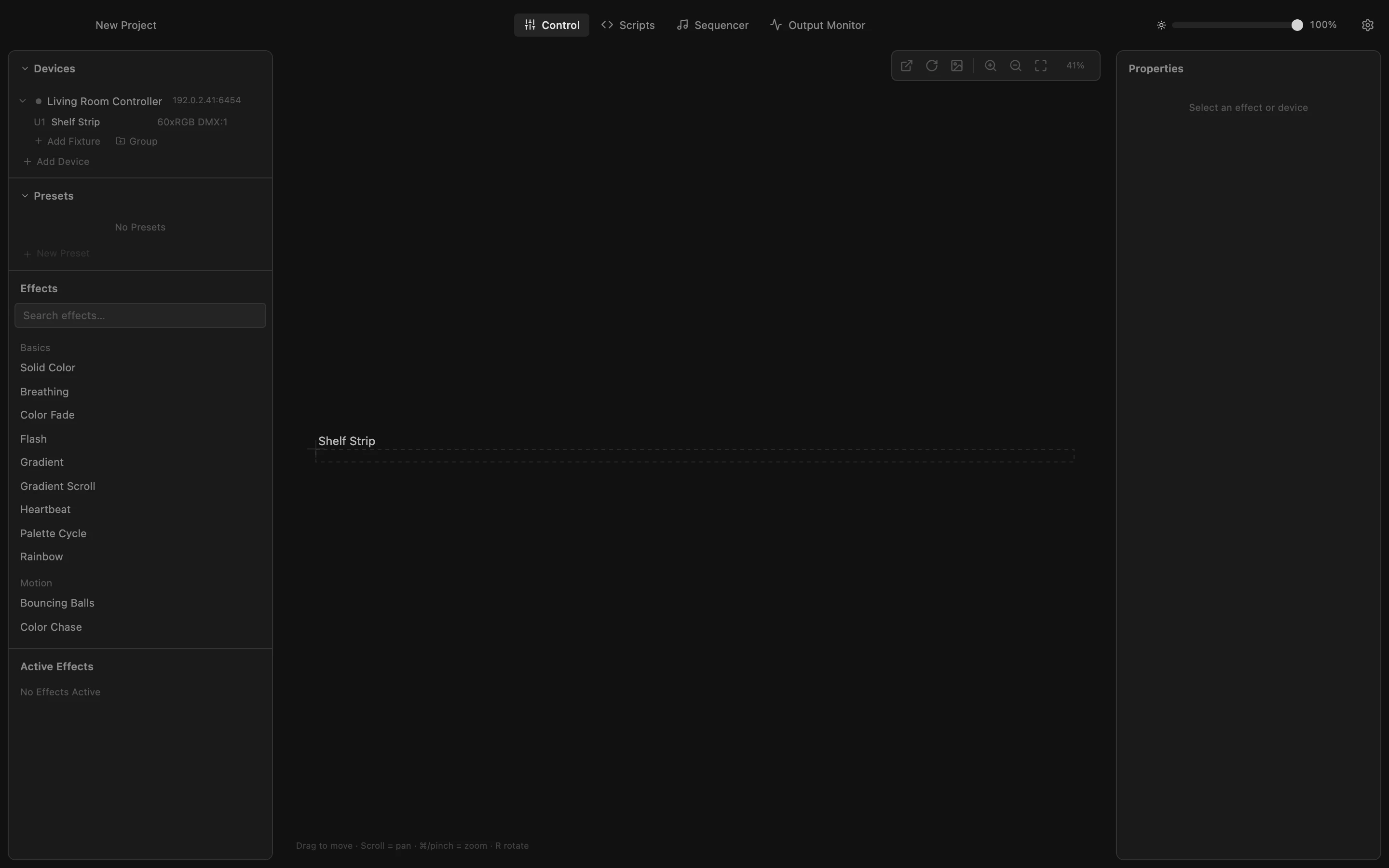
Step 1 of 7
Choose where it runs
An effect runs on whatever is selected under Devices. Click your device to select all its fixtures; the bar below the list shows the target. With nothing selected, an effect runs on every fixture.