 PixDrive
Add a fixture
Add a fixture: LED type, LED count, universe and DMX address, color order and reverse.
Updated
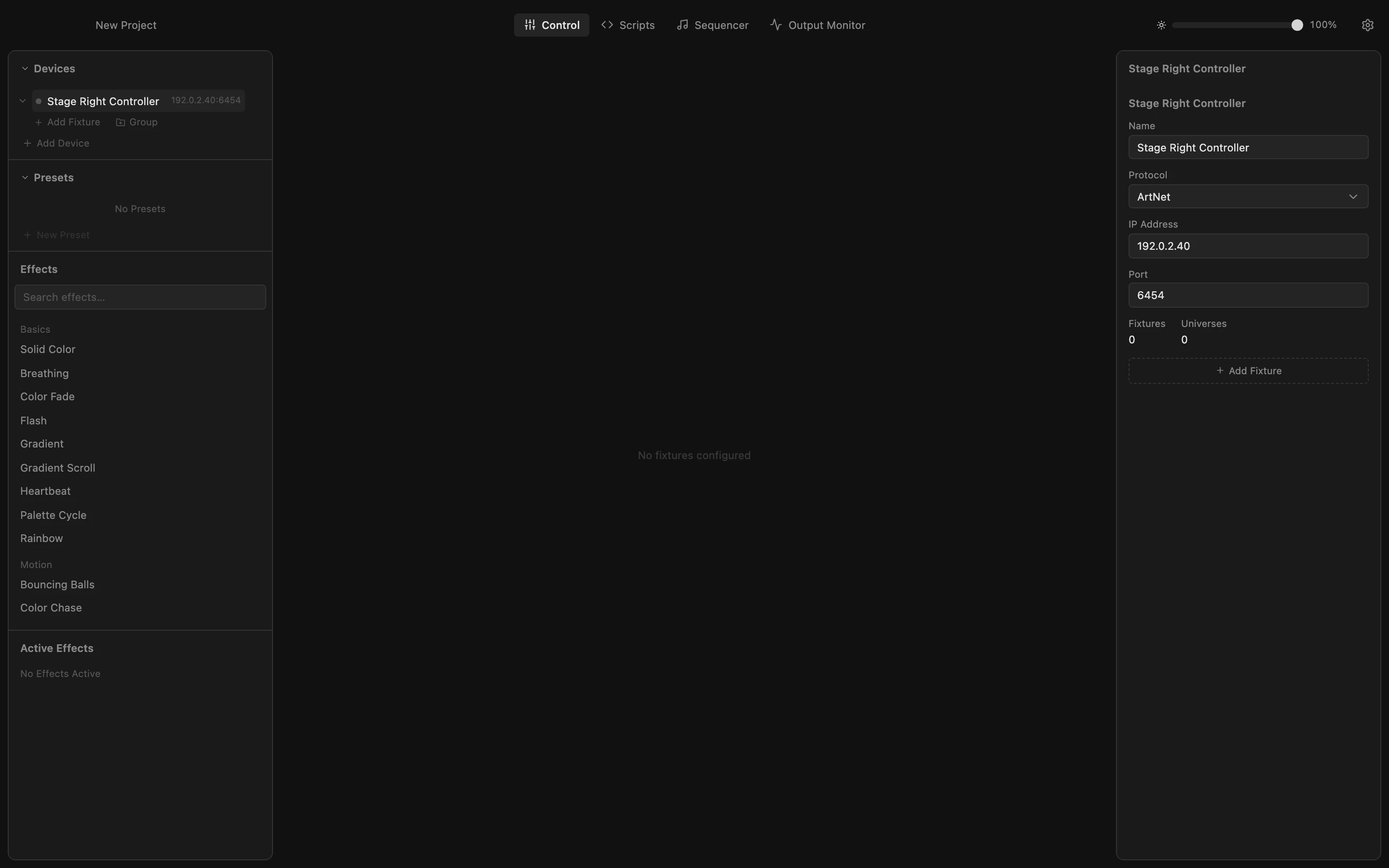
Step 1 of 7
Open the fixture form
A fixture is one LED strip, matrix or shape on a controller output. Click Add Fixture under the device the strip is connected to.
All steps
- Open the fixture form
A fixture is one LED strip, matrix or shape on a controller output. Click Add Fixture under the device the strip is connected to. - Name it and open the LED type
Type a name you will recognise in effects and the layout. Then click the LED type list: it sets how many DMX channels each LED uses. - Pick the LED type
RGB strips use 3 channels per LED, RGBW strips 4 (with a white chip). The strip's data sheet or packaging tells you which. Here: RGBW. - LED count, universe and DMX address
Enter how many LEDs the strip has, then the universe (U) and the DMX start address the controller output expects. The form suggests the next free address. Click Add. - Select the fixture
The row shows universe, name, LED count and type, and the DMX address. Click it: Properties on the right shows all of the fixture's settings. - Reverse it and open the color order
Fed from the other end? Tick Reverse Order so effects run the right way. If the colors come out wrong (red shows as green), the strip uses another color order: open Color Order. - Pick the color order
Many RGBW strips expect green first: choose GRBW. The change is saved right away. Your fixture is ready for its first effect.