 PixDrive
Start an effect and adjust it
Start an effect from the list, change its speed and color in Properties, watch the preview and stop it again.
Updated
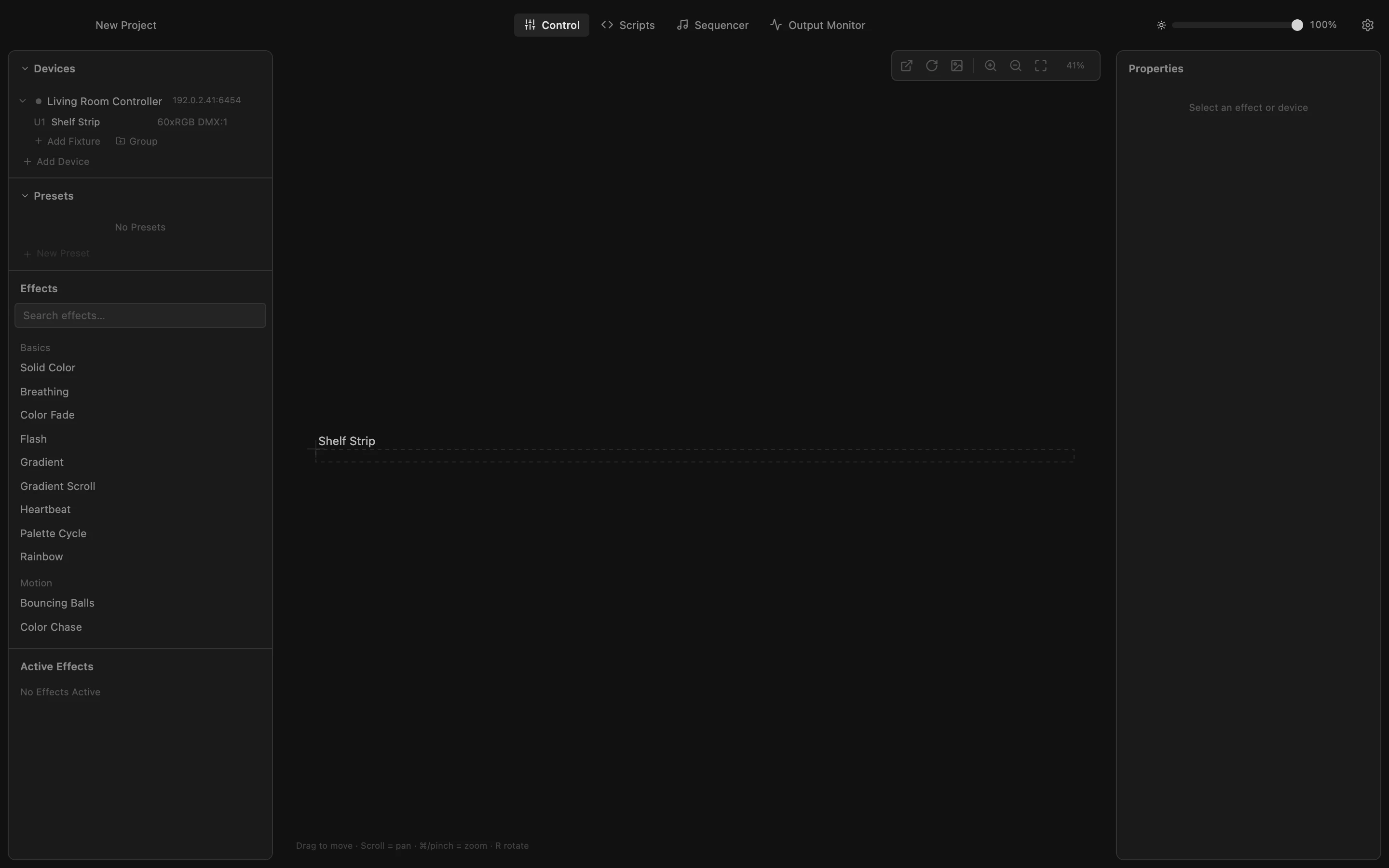
Step 1 of 7
Choose where it runs
An effect runs on whatever is selected under Devices. Click your device to select all its fixtures; the bar below the list shows the target. With nothing selected, an effect runs on every fixture.
All steps
- Choose where it runs
An effect runs on whatever is selected under Devices. Click your device to select all its fixtures; the bar below the list shows the target. With nothing selected, an effect runs on every fixture. - Pick an effect
The Effects list on the left holds every built-in effect, sorted by category. Click Breathing: it starts right away on the selected device. - Watch it run
The LED preview in the middle shows what your LEDs show. Active Effects lists what is running, and Properties on the right shows the effect's settings. - Make it faster
Click further right on the Speed slider, or drag its knob, to make the effect breathe faster. The preview follows at once. - Open the color
Click the color swatch under Color. A color picker opens with a color field, a hue bar, a hex value and quick colors. - Pick a color
Click the orange quick color, or pick any shade in the color field. Press Esc to close the picker. The LEDs breathe in the new color. - Stop the effect
Click the × next to the effect in Active Effects. The LEDs go dark. Click Breathing in the list whenever you want it back.