 PixDrive
Your first sequence
Play effects on a timeline: choose the target, add and move clips, add a second track, play.
Updated
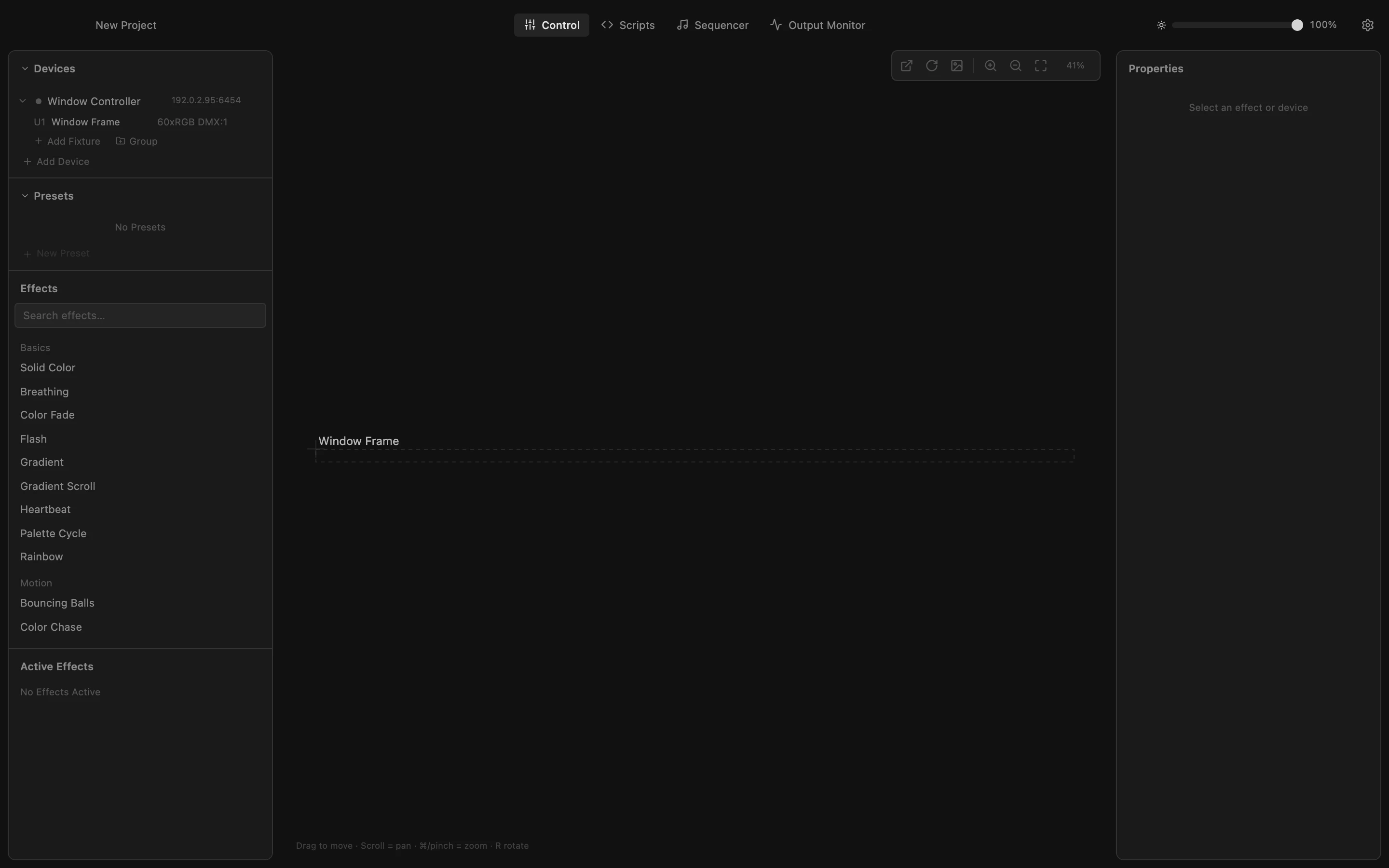
Step 1 of 7
Open the Sequencer
Effects you start in Control run until you stop them. A sequence plays them on a timeline, one after another and side by side, like a show. Click Sequencer at the top.
All steps
- Open the Sequencer
Effects you start in Control run until you stop them. A sequence plays them on a timeline, one after another and side by side, like a show. Click Sequencer at the top. - Choose where clips play
A new clip plays on whatever is selected under Devices. Click your device to select all its fixtures; the bar below the list shows the target. With nothing selected, a clip plays on every fixture. - Put an effect on the timeline
Click Rainbow in the effect list. It lands on the first track as a 5-second clip at the playhead, set to play on the selected device, and its settings open on the right. - Drag the clip to its time
Drag the clip along the track to move it in time; drag its left or right edge to make it shorter or longer. Here the rainbow now starts at 3 seconds. - Add a second track
Each track is a row of clips. Clips on different tracks play at the same time, so a second track lets two effects overlap. Click + Track above the track list. - Add a second clip
Click Breathing in the effect list. The first track is taken at the playhead, so the clip goes on the new track. Where the two overlap, both run at once; the Segment tab sets how they mix. - Play, pause and stop
Click Play: the playhead runs across the timeline and the preview shows every clip it passes. Click again to pause where you are; Space does the same. Stop, left of Play, sends the playhead back to the start.