 PixDrive
Replace or add?
Importing a controller again: Replace keeps its name and ID so effects and sequences keep working, Add New creates a second device.
Updated
Step 1 of 7
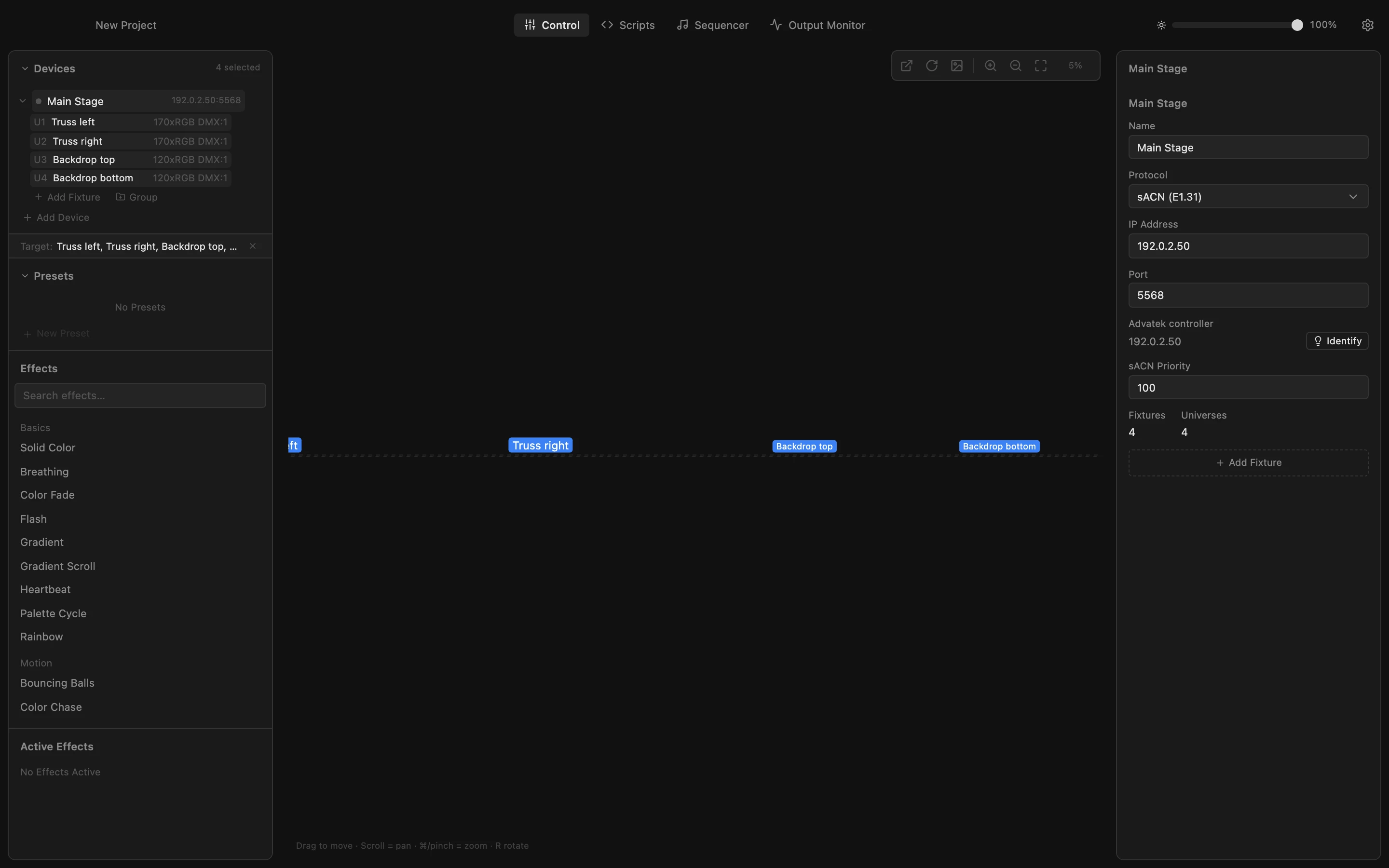
A controller you already imported
This PixLite was imported earlier and renamed to Main Stage. Since then its backdrop outputs got longer strips: 150 LEDs instead of 120. Import it again to bring the change into the project.
All steps
- A controller you already imported
This PixLite was imported earlier and renamed to Main Stage. Since then its backdrop outputs got longer strips: 150 LEDs instead of 120. Import it again to bring the change into the project. - Open the discovery list
Click the gear at the top right and scroll down to Device Discovery. The controller is still listed under the IP address the device sends to. - Import it again
Click the download button in its row. A device with this IP address already exists, so PixDrive Studio asks what to do with it. - Replace keeps the device
Click Replace. The device keeps its name and ID, and every output that is still there keeps its fixture, so effects, presets and sequences on it keep working. Only the pixel counts and addresses are updated. - Or add a second device
Sometimes you want both, for example to keep the old setup for comparison. Click the download button again; the same question comes up. - Add New creates another device
Click Add New. PixDrive Studio creates a new device with the controller's own name and fresh fixtures; the existing one stays as it is. Both send to the same IP address. - Both devices in the list
Close Settings. Main Stage now has 150 LEDs on its backdrop outputs, and the new PixLite sits next to it. Two devices on one controller send the same pixels twice, so delete the one you do not need.