 PixDrive
Place fixtures on the 2D canvas
Arrange fixtures on the 2D canvas the way they hang: drag them, rotate with R, fit the view.
Updated
Step 1 of 4
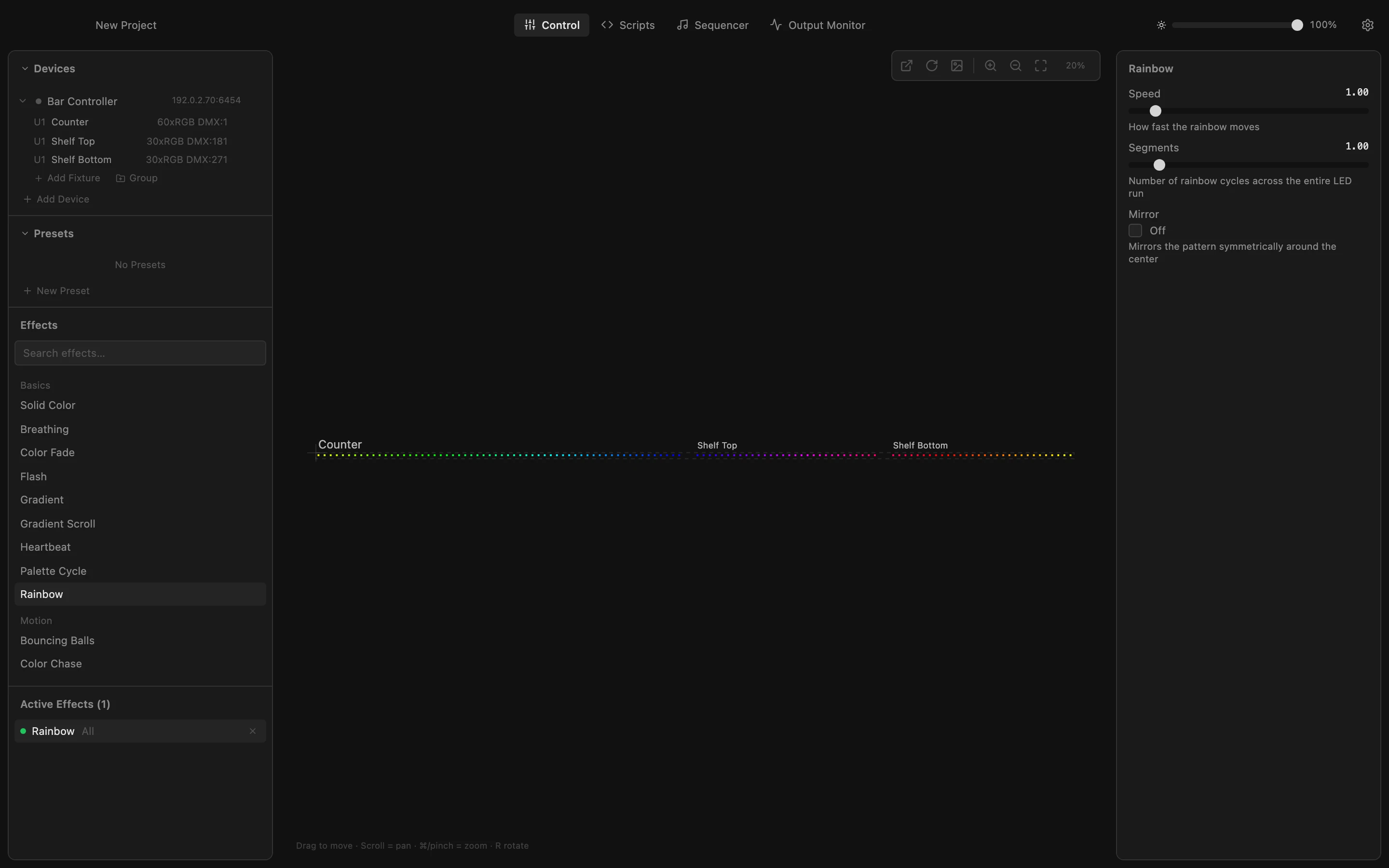
The 2D canvas
Every fixture you add lands on the canvas in the middle, at its real size in millimetres. New fixtures are placed in a row; now arrange them the way they hang.
All steps
- The 2D canvas
Every fixture you add lands on the canvas in the middle, at its real size in millimetres. New fixtures are placed in a row; now arrange them the way they hang. - Drag a fixture into place
Drag a fixture with the mouse. It snaps to the grid; hold ⌘ to move it in 1 mm steps. Here the lower shelf strip goes under the upper one. - Rotate with R
Click a fixture to select it and press R: it turns by 90°. The counter strip runs up the wall, so it stands upright. - Fit the view
Fit to view zooms and pans so every fixture is in sight. Scroll to pan and ⌘-scroll or pinch to zoom; the layout is saved with the project.