 PixDrive
Transitions and blend modes
Fade clips in and crossfade between them, set fades in milliseconds, order tracks and pick blend modes.
Updated
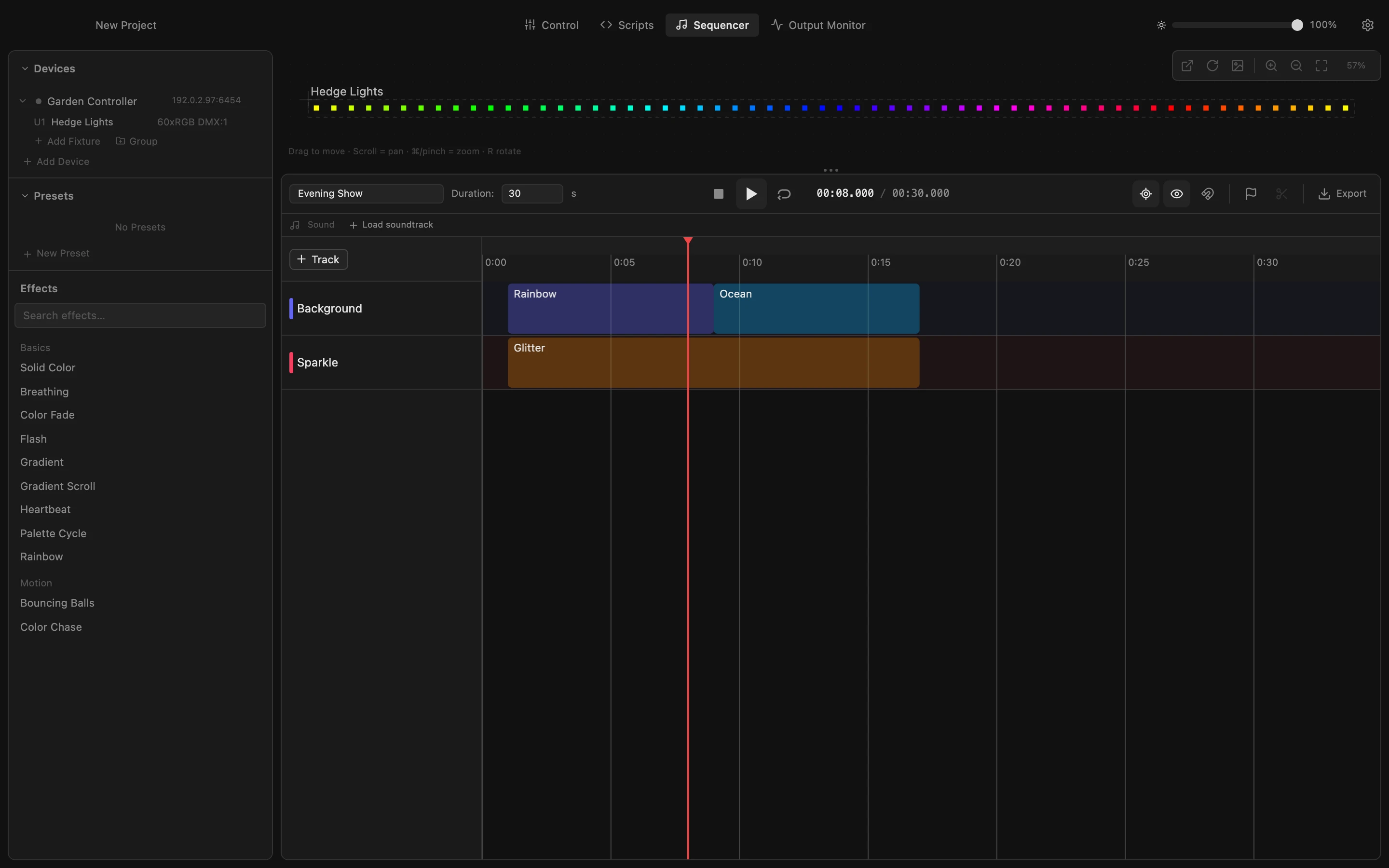
Step 1 of 7
Fade a clip in
Point at the top left corner of the Rainbow clip and drag the small handle to the right. The rainbow now fades in over the first 2 seconds instead of switching on at once; the slope on the clip shows the fade.
All steps
- Fade a clip in
Point at the top left corner of the Rainbow clip and drag the small handle to the right. The rainbow now fades in over the first 2 seconds instead of switching on at once; the slope on the clip shows the fade. - Crossfade into the next clip
Drag the Ocean clip to the left, onto the end of the rainbow. Where the two overlap, the rainbow fades out while the ocean fades in: a crossfade, here 2 seconds long. - Fine-tune the fades
The Segment tab of the selected clip shows its fades in milliseconds: In is the 2-second crossfade. Click Out, type 3000 and press Enter, and the ocean fades out over its last 3 seconds. The menu next to each field picks the curve. - Bring a track to the front
The upper track is drawn in front of the ones below, so the glitter is hidden behind the background. Drag the Sparkle track by its name above Background: now it is in front. - Select the clip in front
With the blend mode Normal, the clip in front covers everything behind it. Click the Glitter clip: its Segment tab shows the blend mode. - Open the blend modes
Click Blend Mode. The list sets how the clip mixes with the tracks below it. - Add the glitter on top
Click Additive. The glitter now adds its light to the rainbow and the ocean instead of covering them. Multiply darkens, Maximum keeps the brighter of the two layers.