 PixDrive
Submodels: light up part of a fixture
Name part of a fixture as a submodel and run an effect only there.
Updated
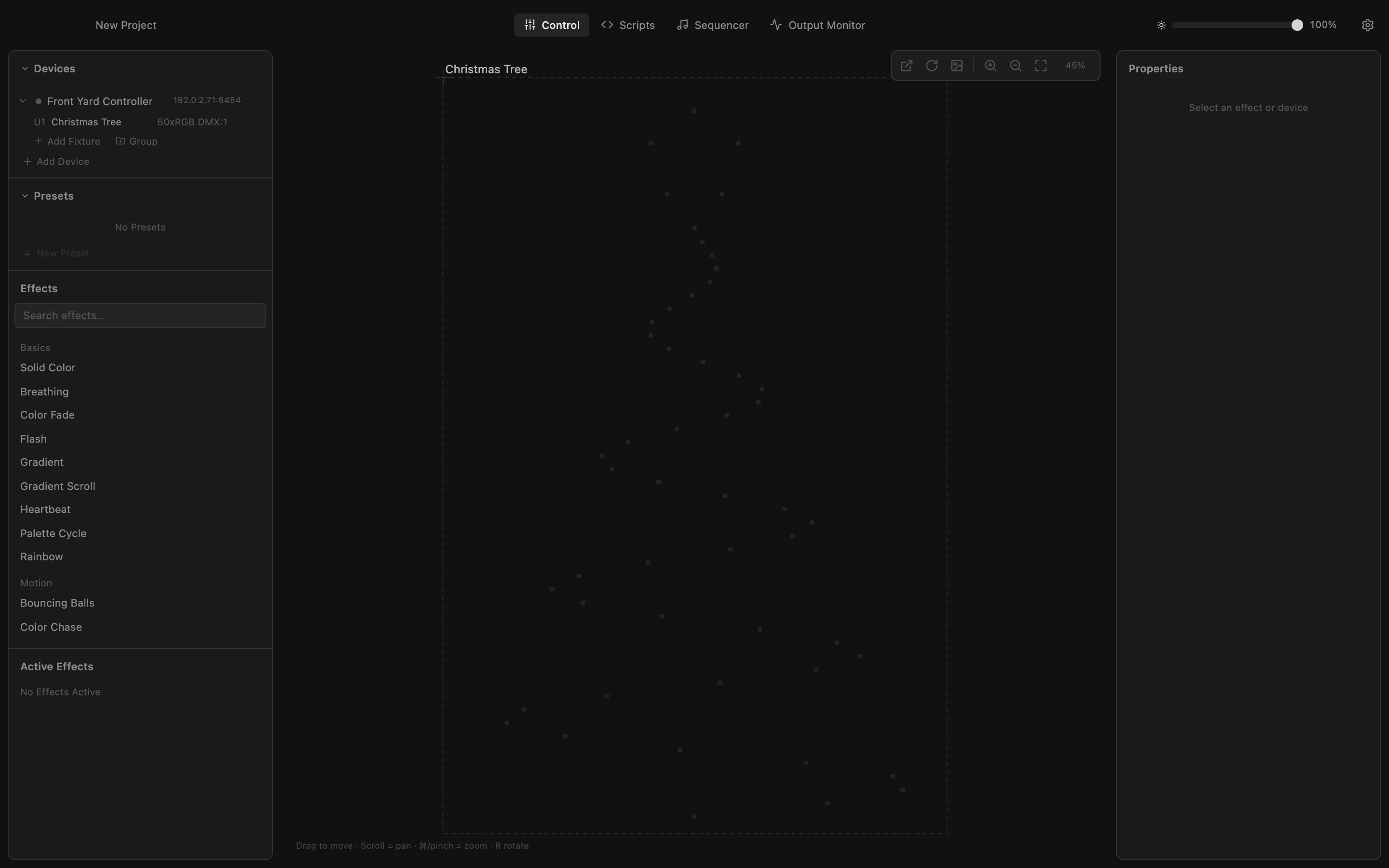
Step 1 of 6
Select the fixture
A submodel is a named part of a fixture, like the star on top of this tree. Click the tree under Devices: Properties on the right shows its settings.
All steps
- Select the fixture
A submodel is a named part of a fixture, like the star on top of this tree. Click the tree under Devices: Properties on the right shows its settings. - Add a submodel
Under Submodels, click + to add one. It starts with a placeholder name and no pixels. - Name it
Click the name and type what this part is, here Star on top. Press Return to keep it. - Choose its pixels
Enter the pixel numbers that belong to it, as ranges and single numbers: the star is the last five LEDs of the chain, 46-50. The number next to the name counts them, and the submodel now shows up under the tree in Devices. - Select the submodel
Click Star on top under Devices. Now effects target only the star; the Target bar below Devices shows it. - Run an effect only there
Click Color Fade. It runs on the star alone and the rest of the tree stays dark. Hold ⌘ while clicking to target several submodels and fixtures at once.