 PixDrive
Find devices on the network
Use Device Discovery to find Art-Net nodes and Advatek controllers on your network and import a controller with its outputs.
Updated
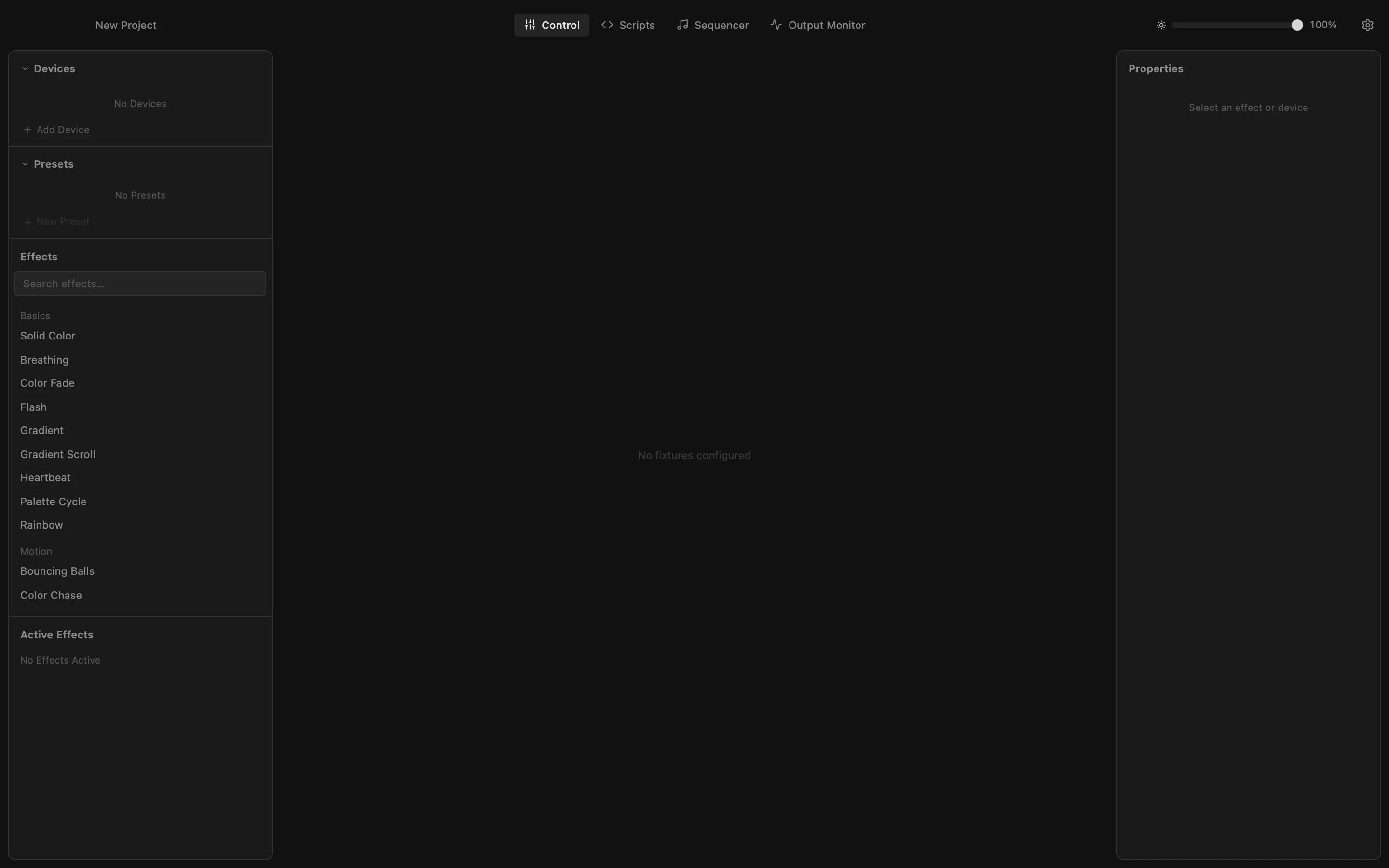
Step 1 of 6
Open Settings
Device Discovery lives in Settings. Click the gear at the top right of the toolbar and scroll down to Network Interface.
All steps
- Open Settings
Device Discovery lives in Settings. Click the gear at the top right of the toolbar and scroll down to Network Interface. - Pick the network interface
Choose the network adapter your controllers are connected to, for example Ethernet. PixDrive Studio searches and sends on this network. - Start the search
Click Start Discovery. One scan finds Art-Net nodes and Advatek PixLite controllers of every generation; it takes about three seconds. - Read the list
Each row shows the name, IP address, type and firmware or universes. Mk3 controllers have a download button that imports them with all their outputs; + adds any device by its IP. Hover a name to see its MAC address. - Import the controller with its outputs
Click the download button of the Mk3. PixDrive Studio reads its output configuration and creates a device with one fixture per used output: universe, start channel, pixel count and color type included. - Your new device
Close Settings. The controller is now a device in the Devices list, with its four outputs as fixtures. Select a fixture to see its settings, or start an effect right away.