 PixDrive
Add a discovered controller by IP
Add a discovered controller with just its IP address and protocol, then add the fixtures yourself.
Updated
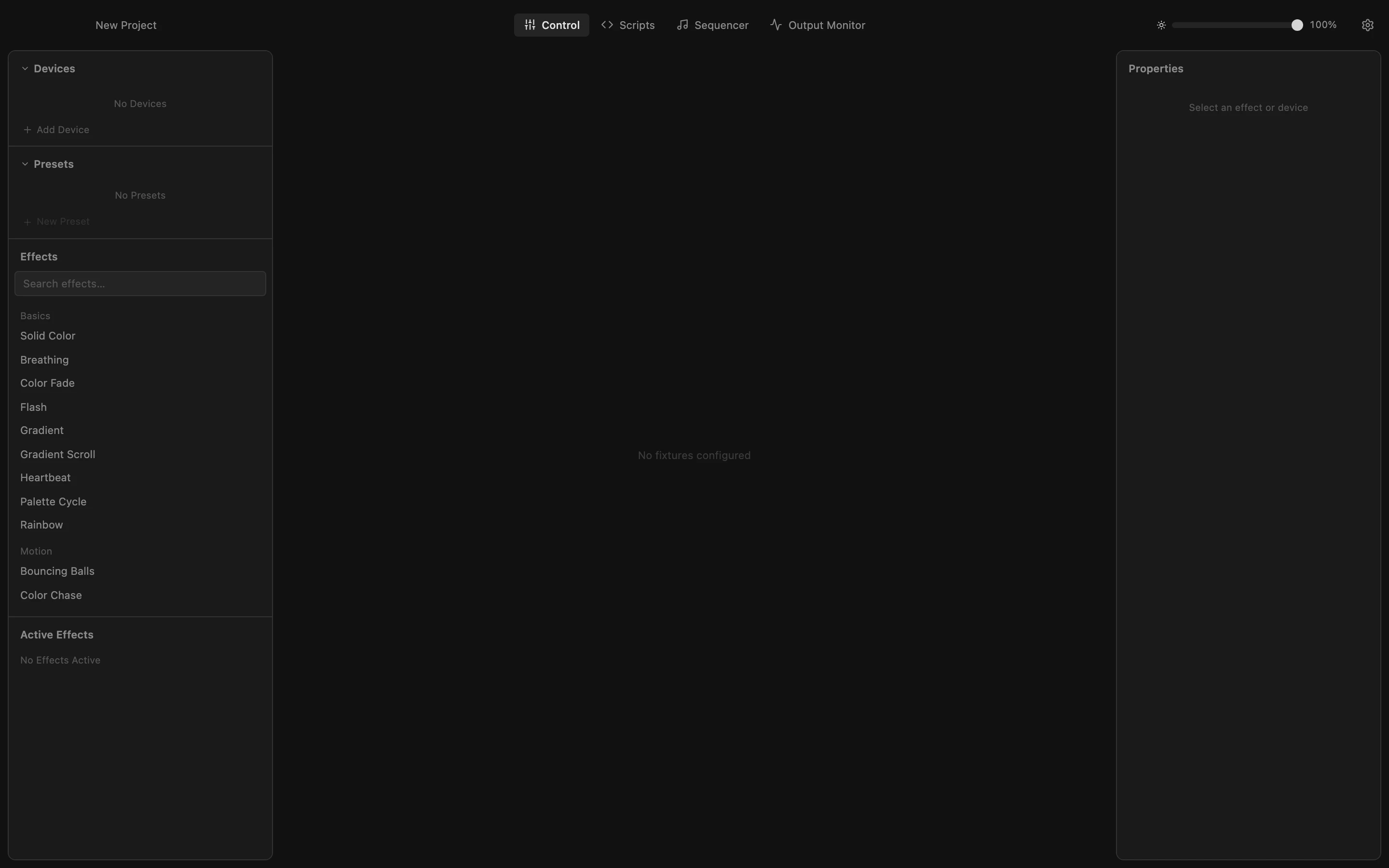
Step 1 of 6
Open the discovery list
Click the gear at the top right and scroll down to Device Discovery. After a scan (see Find devices on the network) it lists every controller that answered.
All steps
- Open the discovery list
Click the gear at the top right and scroll down to Device Discovery. After a scan (see Find devices on the network) it lists every controller that answered. - Add the Art-Net node
Click + (Add as Device) in the row of the node. PixDrive Studio adds it as an Art-Net device with its IP address and the port it reported; it shows up in the Devices list behind Settings. - Add the PixLite
Do the same for the PixLite 16 Mk2. Mk1 and Mk2 controllers report their input protocol, so it becomes an sACN device here. A Mk3 does not report it and is added as sACN; to bring along its outputs too, use its download button instead. - Your new devices
Close Settings. Both controllers are now in the Devices list with their address and port: 6454 for Art-Net, 5568 for sACN. They have no fixtures yet. - Add a fixture by hand
Discovery does not know what is connected to the outputs, so you add the LEDs yourself. Click Add Fixture under the Art-Net node. - Match the node's output
Name the strip and enter its LED count. The discovery list showed the node sends universes 0 and 1: put the strip on universe 0, DMX address 1, and click Add.