 PixDrive
Export a show for standalone playback
Export a sequence as FSEQ or Advatek .scn for playback without a computer: format, ports and frame rate.
Updated
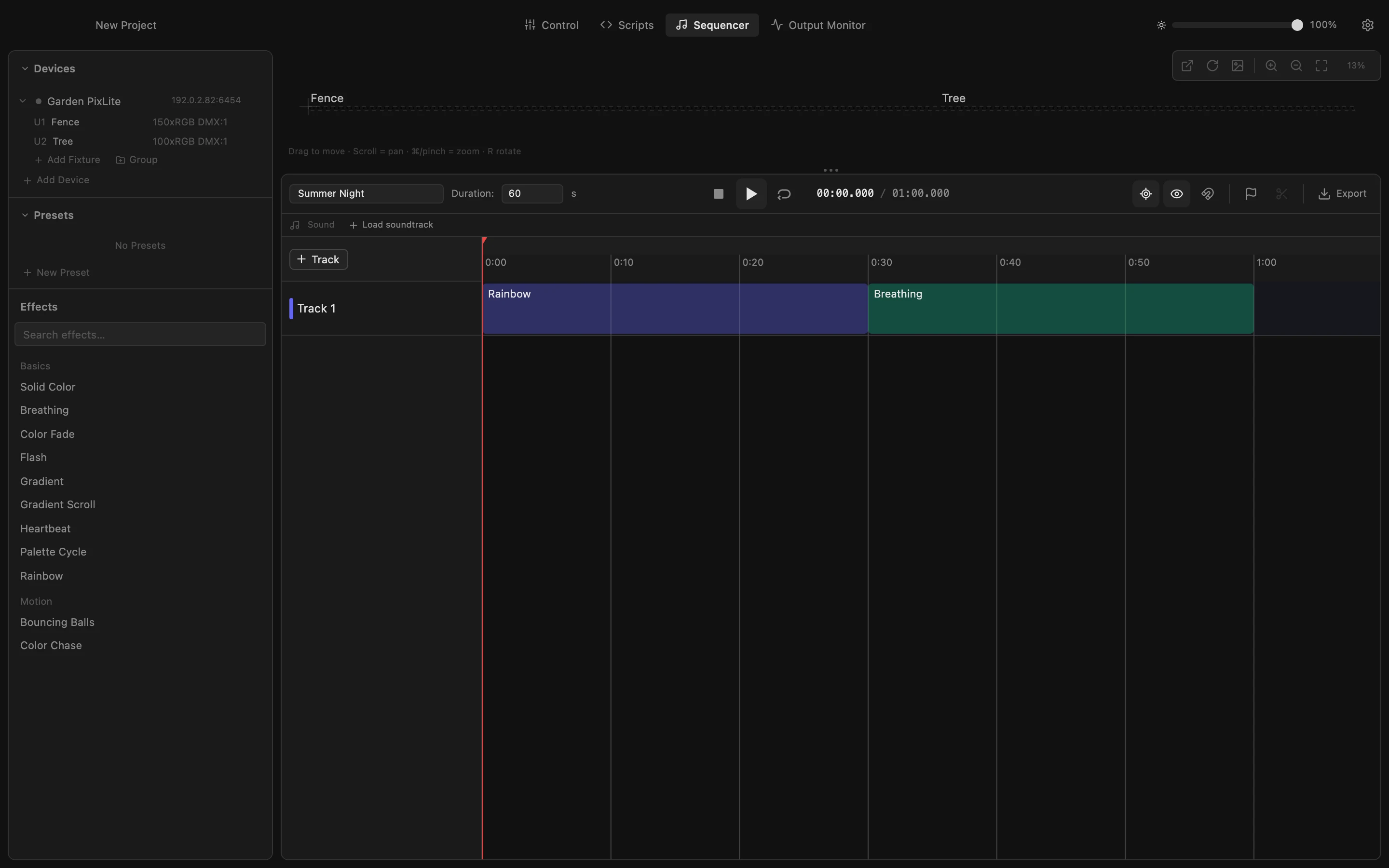
Step 1 of 6
Open the export
Your show is finished in the Sequencer. To play it without the computer, export it as a file the controller or player runs on its own. Click Export at the top right.
All steps
- Open the export
Your show is finished in the Sequencer. To play it without the computer, export it as a file the controller or player runs on its own. Click Export at the top right. - FSEQ for FPP, Falcon and ESPixelStick
The list on the left shows what each format is for. Click FSEQ: it holds all universes of all devices, so there is no device to choose. Its frame rate must be a whole number of milliseconds per frame: 20, 25, 40 or 50 fps. - Advatek .scn for a PixLite
A PixLite plays a show from its SD card with SHOWTime. Click Advatek .scn. This format is made for one device, and it needs the controller's ports: no ports are set up yet. - Take the ports from the fixtures
Click From fixtures: every fixture becomes a port with its pixel count, start address and universe. Check them against the outputs your fixtures are wired to. The port table is saved with the device for next time. - Choose the frame rate
More frames per second make fades smoother and the file bigger. A .scn takes up to 120 fps. Click 30: the line at the bottom shows how many frames the minute-long show becomes. - Export and copy to the SD card
Click Export and choose where to save the file. Copy it to the PixLite's SD card, and SHOWTime plays the show without the computer.